
JA-82K (part 1)
Service explanation for JA-82K
1 Central controller architecture
- The central controller has 50 addresses (01 to 50), 50 wireless items can be read in, e.g. detectors, control panels, remote controls, sirens ...
- When triggering, the detector sends a unique signal. The central receiving station links the appropriate response to each signal. E.g. the reaction for a door contact can be an immediate or delayed alarm depending on the position of the DIP switch. A remote control transmits a signal for arming, disarming or panic.
o The control panel is pre-programmed so that each wireless element is linked to the appropriate response. These responses can be modified later. See 12.39
- Wireless items can be linked to 3 sections: A,B or C. In partial arming you can arm only A, or arm A+B, or arm A+B+C. In a "SPLIT" system you can arm both A and B separately, when both are armed, automatically the common section C is also armed.
- The control panel has 2 wired inputs, these are automatically linked to addresses 01 and 02. When these inputs are not used these addresses can be used for wireless items. Some wireless items also possess a wired input, such as control panels, magnetic contacts and PIR motion detectors.
- The control panel has 2 alarm outputs: IW = internal alert and EW = external alert. Both signals are also available as wireless signals.
- There are 2 programmable outputs in the control panel, PGX and PGY. The functions of the PGX and PGY can be configured. The PG outputs can be used not only as wired outputs, but also as radio signals to control the UC and AC receiver outputs.
The central controller has 50 addresses (01 to 50), 50 wireless items can be read in, e.g. detectors, control panels, remote controls, sirens ...
When triggering, the detector sends a unique signal. The central receiving station links the appropriate response to each signal. E.g. the reaction for a door contact can be an immediate or delayed alarm depending on the position of the DIP switch. A remote control transmits a signal for arming, disarming or panic.
o The control panel is pre-programmed so that each wireless element is linked to the appropriate response. These responses can be modified later. See 12.39
Wireless items can be linked to 3 sections: A,B or C. In partial arming you can arm only A, or arm A+B, or arm A+B+C. In a "SPLIT" system you can arm both A and B separately, when both are armed, automatically the common section C is also armed.
The control unit has 2 wired inputs, these are automatically linked to addresses 01 and 02. When these inputs are not used, these addresses can be used for wireless items. Some wireless items also possess a wired input, such as control panels, magnetic contacts and PIR motion detectors.
The control panel has 2 alarm outputs: IW = internal alert and EW = external alert. Both signals are also available as wireless signals.
There are 2 programmable outputs in the control panel, PGX and PGY. The functions of the PGX and PGY can be configured. The PG outputs can be used not only as wired outputs, but also as radio signals to control the UC and AC receiver outputs.
The system can be operated by user codes or by access cards ( Type,Proximity EM technology). The system allows 50 different users. The system can also be operated via remote control, and if the control panel has the appropriate communicator, it can be operated via GSM or via the Internet.
It is possible to have different responses linked to access codes or access cards, and when using a "SPIT" system, it is possible to specify which code/card has access to section A or to section B. Each of the max. 50 users can have its own 4 number code and/or its own card. Arming and disarming is possible by both card and code, and when higher security is required, then also a combination card+code is possible to arm/disarm.
Programming of the system is possible via the OASIS control panel JA-80F(wireless) and the JA-80E(wired), as well as via computer with the Comlink software. Further options offer programming via telephone/GSM or via the Internet.
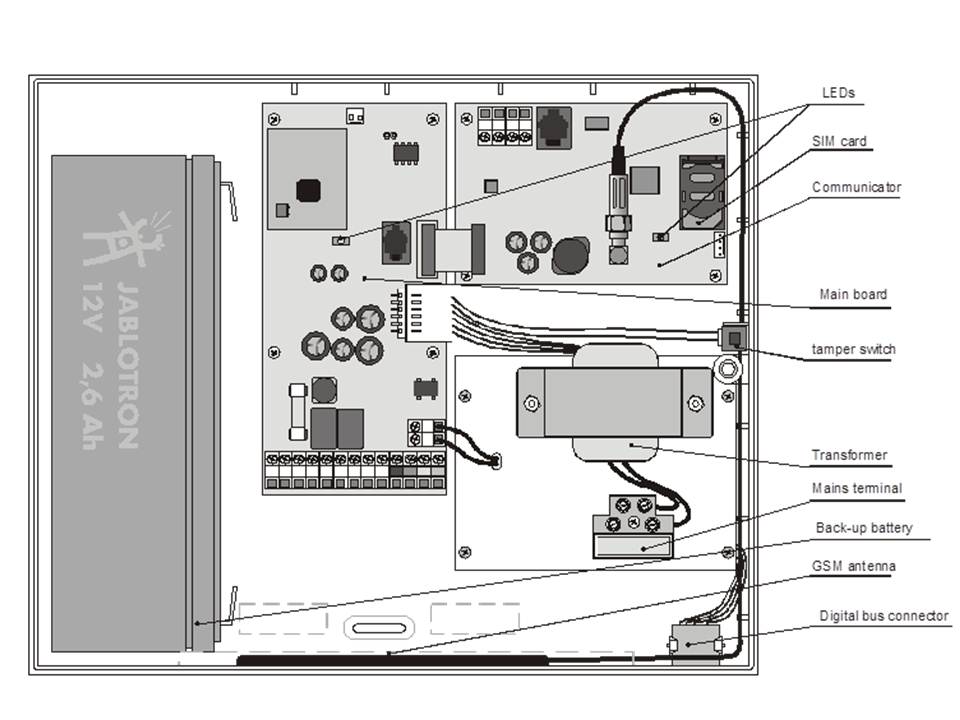
The control panel has a power supply module and there is room for a 12V 2.6Ah battery for Autonomy.
The control panel also has a digital bus equipped with terminals and RJ connectors. This digital bus can be used for the wired control panel or for connection to the PC via the USB interface.
The control panel can be equipped with an optional communicator for external communication to the system. The LAN/PSTN communicator JA-80V and the GSM communicator JA-80Y allow communication to the control room. The voters can send SMS messages and allow remote control of the system via telephone/GSM or via the Internet. The JA-80X PSTN communicator can report alarms over the traditional telephone line via voice messages.
Note OASIS JA-82K has 3 modes, user mode, maintenance mode and installation mode. User mode is for daily use of the system by the authorized user.(e.g. arming/disarming). Maintenance mode is for the MASTER code holder (system administrator) for limited programming of the system (e.g. modification of codes/cards). Installation mode is only accessible to installers, and is used for programming and operation of all aspects of the system.
1.1 Optional system configurations
In the European Union, according to the standard regulations, the OASIS control panel complies with EN-501-xx grade 2.
The central controller must have at least the following configurations:
- At least 2 non "non-backup sirens" (JA-80L or SA-105) + communicator class ATS2 (JA-80Y, JA-80V or JA-80X)
- At least 1 "backup-battery" siren (JA-80A or OS-350) + communicator class ATS2 (JA-80Y, JA-80V or JA-80X)
- No siren + communicator class ATS3 (JA-80Y or JA-80V)
Note: The above recommended configurations are based on the EU standard EN-50131-1 in force at the time of drafting this manual
2 Installation of the central unit
The central unit can be fixed to the wall with 3 screws. The drilling diagram can be found on the last page of this manual
- As the control unit communicates via radio frequency, we recommend that you do not install the control unit near large metal objects that may block radio communication.
2.1 Power cable wiring
The power cable of the control panel should be connected by competent persons with the appropriate electrical engineering degree.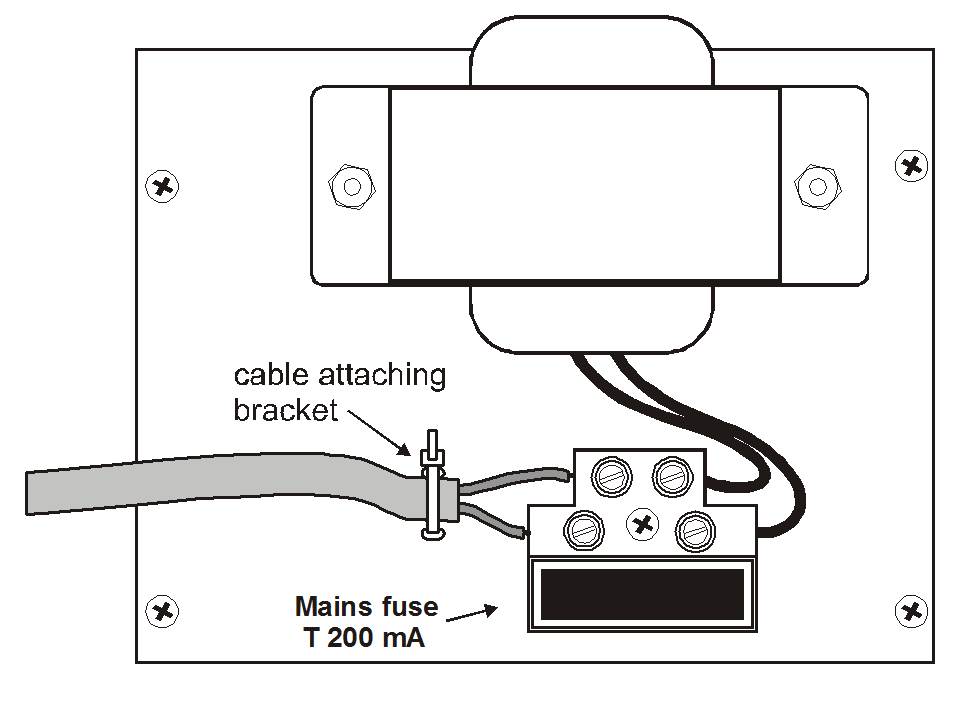
The power cable of the control center is double shielded (safety class 2) and has no additional grounding.
- The double-shielded power cable should have a minimum section of 0.75 to 1.5mm². This cable should be connected to the switchable fuse of 10 AMPS of the central controller, this fuse is type T200mA/250V
- Attach the cable into the cable holder of the central controller, make sure that the wire ends are well shielded and attach in the connector.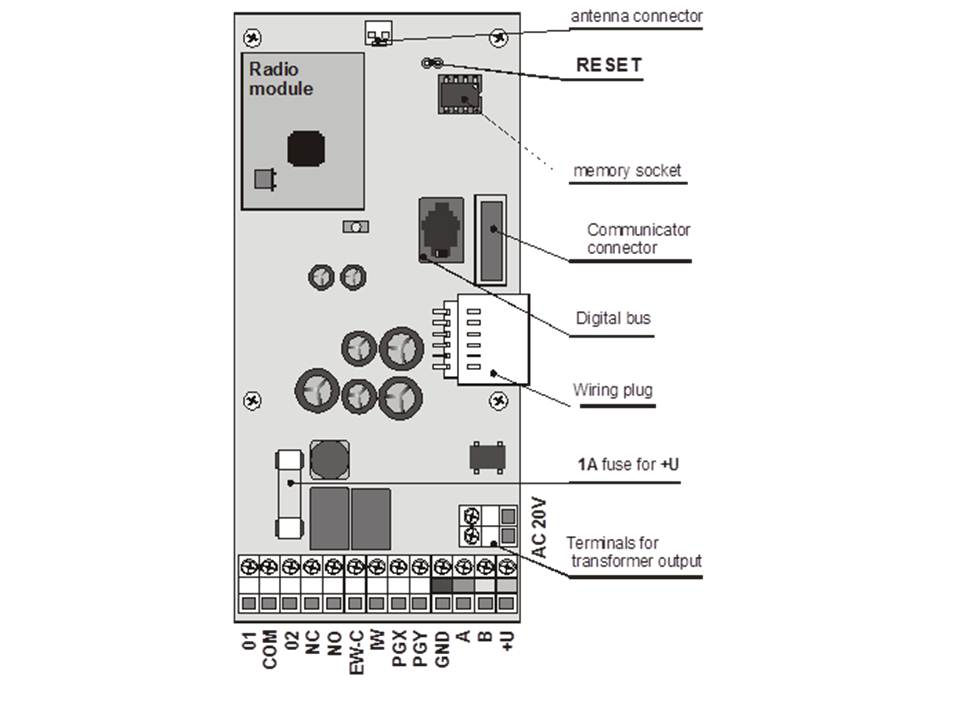
3 Central controller memory
The central controller memory is stored in the EPROM. If the control unit is damaged, it can be removed and inserted into a new control unit without losing the data. This way, all settings of read-in detectors, access codes and cards are preserved. The new control panel will be an exact copy of the previous one.
Note
- The communicator settings are not stored in this memory
- The memory should only be inserted/removed in a de-energized state.
- It is always recommended to store the memory on a PC using the Comlock software. This way the data is preserved even in case of very heavy damage.
4 Central: Connectors and terminals
Antenna connector - This is used to connect to the internal antenna or to the external antennas such as the AN-80 or AN-81.
Reset link (normally open) - To reset the control panel, one must short this link before energizing the control panel. This link can also be used to read a control panel by briefly shorting it when the control panel is powered up.
Digital bus connector - For connecting the wired control panel JA-81 E or the PC for the Comlink software via the JA-80T USB interface cable. The same digital bus can be seen at the bottom right of the control panel housing. The same bus is available via terminals GND,A,B,+U
Communication connector - this is the connector for the optional communicator. (PSTN, LAN or GSM)
Internal wiring connector - Connect the internal wiring in the control panel housing.
Terminals:
AC 20V this is where you connect the transformer output.
01, GND, 02 are wired inputs of the central controller.
- The responses for these inputs to trigger are defined by the settings of addresses 01 and 02. The factory setting for these 2 wired inputs are both delayed inputs in section C.
- Terminals 01 and 02 use resistors in loop
o Connect to GND via 1 to 5 kW = triggered input,
o Up to 5 normally closed solenoid contacts can be placed in series and connected to 1 hard wired input, each solenoid contact should have 1 resistor in parallel of 1KW ( See diagram below)
o Multiple tamper contacts can be placed in series without additional resistor in parallel. The number of tamper contacts is not limited, and can be combined with trigger contacts with resistors of 1KW in parallel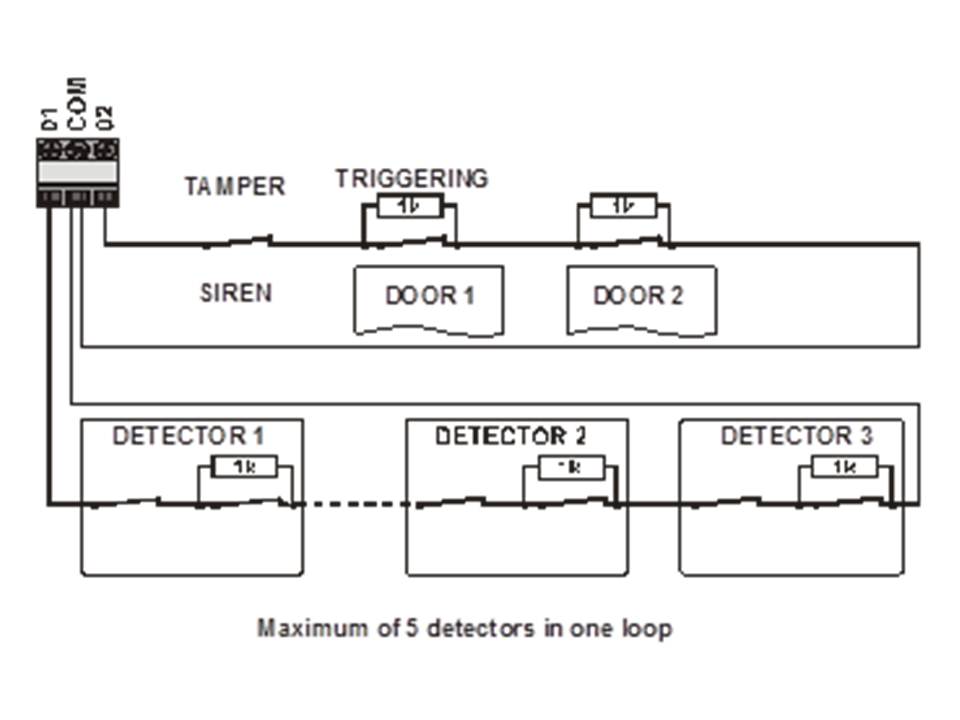
o When wireless items are enrolled at address 1 and address 2, the corresponding input will be deactivated.
o When you do not use the hard wired input, nor do you read any wireless item at address 1 or 2, the input must be connected to GND via a 1KW Resistor.
NC - Normally closed contact for the external warning.
NO - Normally open contact for the external warning
EWC - common contact for the external warning relay. Maximum 1A/60V. The control panel also transmits the warning radio signal to the wireless sirens.
IW - Internal warning (siren) output. This output is connected to GND during an internal alarm. A standard indoor siren can be connected to the +U and IW connectors (max 0.5A). The IW output status is also wirelessly transmitted to the wireless indoor siren.
The major difference between an internal and external warning is during the walk-in delay. When an instant detector is triggered during the walk-in delay, only the indoor siren will be triggered, the outdoor siren will not sound until after the walk-in delay.
PGX, PGY -are 2 programmable outputs. When an output is triggered it will switch to GND with a maximum load of 0.1A/12V. The factory setting of the PGX is the function on/off which you can control from the keypad via the keys *81 / *80 or with the arrow keys ). The factory setting of the PGY output is that it will be activated as soon as the system is armed. The status of the PGX and PGY output is sent wirelessly via radio signal for the UC and AC modules.
GND - Ground
A,B - digital bus data
+U - for backup power supply (10 to 14V), 1A fuse. Max. Continuous load 0.4 A (max. Intermittent load of 1 A, for 15 minutes, once per hour). If the fuse is melted, the control panel will indicate a power failure
5 Connecting hard-wired keypad
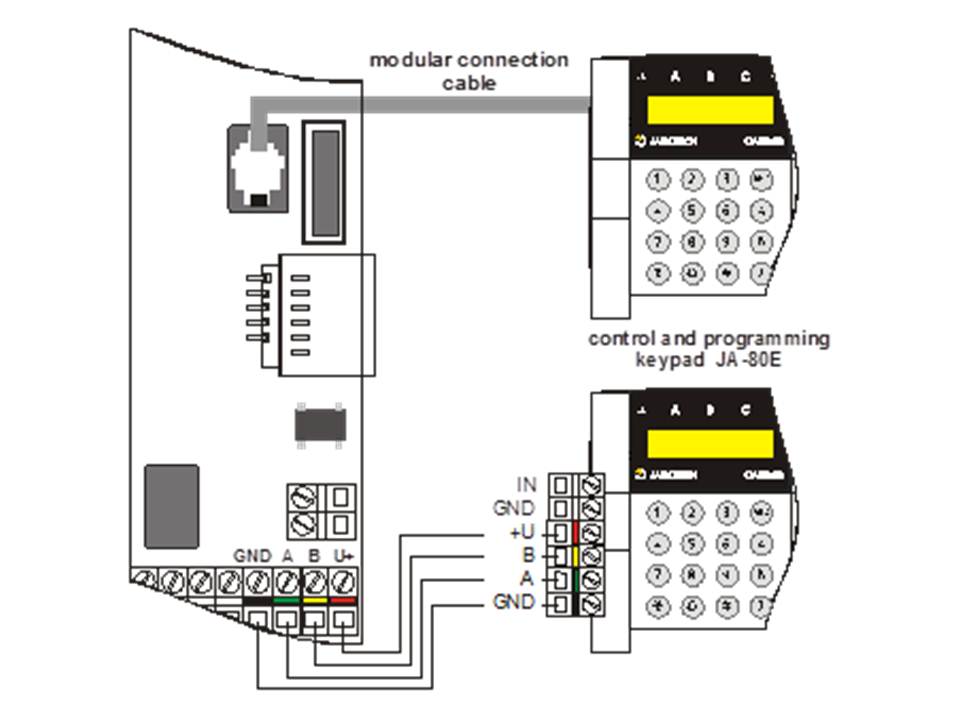
The control panel can be operated and programmed by JA-81F wireless keypads AND/OF by JA-81E hard-wired keypads. A hard wired keypad can be connected to the control panel by a telephone cable with RJ connectors to the digital bus input, or by twisted pair cable of up to 100 meters wired via the connectors provided see diagram above. ( GND, A, B, +U)
We recommend including only 1 wired keypad in a system.
6 Backup battery
The central unit can be equipped with a Jablotron backup battery of 1.3 or 2.2 Ah, depending on the demand for autonomy.
Euro-standard EN 50131-1 requires 12 h minimum backup time for grade 2 systems.
Wireless items are not powered by the central unit.
With a 1.3 Ah backup battery, 12h backup time can be achieved if the current consumption does not exceed 85mA. With the 2.6 Ah battery you have double the capacity (170mA). This is calculated at 80% of the battery capacity as 20% is provided for aging battery effect.
- The average life of the backup battery is up to 5 years, after that it must be replaced. The battery in the system will be charged automatically, and the status will be displayed by the system. When the system runs on battery power only, a technical alarm will occur when the backup battery is low.
Make sure the battery is connected correctly ( Polarity: Red = Positive +, Black = Negative - )
Warning: The battery is already charged when purchased - for safety, avoid short circuiting the outputs.
7 Commissioning the control panel
- Check the wiring, when the GSM communicator is installed, insert the SIM card. (remove pin code)
- Carefully connect the backup battery
- Carefully connect the power. A green LED will start flashing on the control panel PCB.
- If a hard-wired keypad is installed it will be in service mode. If not in service mode the central controller is not in factory settings, in this case a reset is necessary (see chapter 9)
7.1 Reading in the wireless keypad
If no hard-wired keypad is connected to the central controller, and the wireless keypad was not included in the kit, the wireless keypad has to be read in the central controller as follows:
1. Have an opened keypad and batteries ready.
2. Check that the green LED of the central controller is flashing.
3. Briefly close the reset link using a sweater for about 1 second, this puts the central controller into read-in mode.
4. Insert the batteries in the keypad near the central.
5. The keypad will beep and will be read in to the first free zone. You will now see the following on the keypad: "Enrollment 04:Device".
6. Press # to exit the read-in menu to enter "Service" mode
Warning:
- If the keypad has not been read in, the settings are not the factory settings. In this case, do a full reset and repeat previous steps.
- If you want to read in a keypad to another zone, go back to read-in mode via the "1" key, select the correct address via the arrow keys, remove the battery and then put the battery back in the keypad.
Recommendation: It is highly recommended to install the keypad with a magnetic contact wired to the input of the keypad. This way, the keypad will come out of sleep mode every time the door is opened. Then you will also hear the input delay beeps on the keypad, and the card can then be read immediately.
8 Language selection of the keypad
When the * key is pressed continuously during the battery connection, the internal menu allows the selection of the language.
Select the correct language using the arrow keys and confirm with the * key.
In this menu you can also enable or disable the doorbell function of the keypad.
Notes:
- If the batteries were already connected in the wireless keypad, the batteries must be removed for a short time before pressing the * key.
- A different language can be selected for each keypad in 1 system, useful for places with people of different nationalities.
9 Resetting the control panel
When you want to return to factory settings, do the following:
1. Remove the backup battery and disconnect the power (e.g., by removing the fuse).
. Short circuit the reset link via a sweater contact
3. Reconnect the backup battery and power.
4. Wait until the green LED starts flashing, then remove the sweater from the reset link.
Warning:
- After a reset, all wireless items are removed from the system, and all user names and user codes are erased.
- After a reset, the master code will be 1234 again, and the service code 8080, resetting can be deactivated -> see chapter 12.9
10 Closing the lid
After the keypad is in operation, you can close the lid of
the central unit
. Before closing the cover check the connection of the antenna in the central controller.
11 Reading in wireless items
The control panel has 50 zones (01 to 50), 50 wireless items can be read in, e.g. detectors, keypads, remote controls, sirens, etc. The wireless items can be read in on some specific zones by reading them in or via the production code -> see chapter 12.41
11.1 Installing wireless items
Wireless items can be installed first, and then read in to the system, or visa versa. If you have doubts about the range of the radio signal, you can test this communication first (code 298) before proceeding with installation. Follow the instructions of the individual items during installation.
11.2 Reading wireless items into the control center
1. If you are not in "Service" mode, press *0 service code, factory setting is *08080. The PBX must not be armed.
2. Press the "1" key, now you enter read-in mode, the first free address appears on the screen. For a new central controller this address is 04
3. Use the arrow keys if you want to select another zone. If the zone is already occupied, the A led will light red.
4. The item will be read in as soon as the battery is connected, the A led will light red and the next free zone will be displayed.
5. By connecting all batteries in the various items, they will all be read into the control panel. Press the # key to exit read-in mode and return to service mode.
Notes:
- When a wireless element is read into zone 1 or 2, the corresponding hard-wired input will be closed, when the wireless zone is cleared it will become active again.
- Remote control type RC-8x can be read in by holding down both buttons, e.g.:  +
+ or
or  +
+
- For a remote control with 4 buttons, 2 separate zones will be read in.
- Only 1 item can be read into a zone.
- When LED A lights up, it means that the indicated zone is already occupied and therefore no items can be read into this zone.
- When an item has already been read into a certain zone, and you read this item into another zone afterwards, the item will have the address of the new zone, the previous zone will be free again for new items.
- If an item cannot be read into the central controller, then either the wireless connection is insufficient due to long distance, or the distance between the item and the central controller is too small (at least 2 meters distance is required).
- To read an item, first remove the battery from the item, wait about 10 seconds before replacing the batteries. By pressing the tamper, the remaining battery voltage will discharge faster, and you do not have to wait.
- A sub control panel can be read into the "Master" control panel by keying in 299 on the keypad of the sub control panel in service mode. ( See chapter 12.10)
- If you want to apply final door detectors in a system, they should be read in address 00 to 05 or 46 to 50 ( See chapter 12.23)
11.3 Testing read items
1. The antenna of the central unit must be connected, if not in service mode, press *0 8080 to enter service mode. Service mode only possible if the system is not armed.
2. Trigger the item to be tested ( for a detector, open and close the cover and wait until it is ready to be tested)
3. The keypad will beep and will display the signal strength of the item under test ( the cover of the keypad is best open). We recommend taking the keypad to the location of the items to be tested.
Note:
- Motion detectors JA-80P and JA-85P can be tested up to max 15 minutes after closing the cover. After this period, the detector will ignore the changes (see detector manual for details)
- Items can also be tested in maintenance mode.
11.4 Measuring the signal strength
The antenna of the central unit must be connected,if not in service mode, press *0 8080 to enter service mode. Service mode only possible if the system is not armed.
1. Key 298, the lowest read item will be displayed.
2. Trigger the item from the displayed zone. The keypad will now display the signal strength of the triggered zone on a scale of ¼ to 4/4. Keep the Keypad cover open while measuring the signals.
3. Using the arrow keys, other items can be selected for signal strength measurement.
4. With exit via # toests
Notes:
- Motion detectors JA-80P and JA-85P can be tested up to max 15 minutes after closing the cover. After this period, the detector will ignore the changes (see detector manual for details)
- Measuring the signal strength of the JA-80L indoor siren can be triggered by pressing the siren button. The signal strength of the outdoor JA-80A siren can be measured by opening the cover wwhich triggers the tamper.
- Each installed item should have a minimum signal strength of at least 2/4. If the signal is too weak, the sensitivity of the plant can be increased (see 12.35). Furthermore, an external antenna can also be installed to increase the range.
- The measured signal strength is the signal of the item under test and the PBX receiving the signal.
11.5 Erasing read items
If not in service mode, press *0 8080 to enter service mode. Service mode only possible if the system is not armed.
1. Press "1" to enter read-in mode, and use the arrow keys to move to the zone you wish to delete.
2. Hold down the "2" key until you hear a beep and the A LED no longer lights up. -> zone erased
Press # to leave the menu
Note:
- To erase all zones in read-in mode, keep the "4" key pressed.
- When a wireless keypad is erased, communication between keypad and central station will be lost. The keypad must then be read back in (see chapter 7.1)
11.6 Reading in the central unit into the UC and AC modules:
If you wish to use the PGX and PGY outputs of the central controller via the UC and AC modules, they must be read in as follows:
1. The central controller must be in service mode, if not, press *0 service code ( factory setting : 8080)
2. Set the UC or AC module to the desired read-in mode ( see UC/AC module manual)
3. Press "299" on the keypad of the central controller and check that all the LEDs on the read module light up several times to confirm the reading.
Notes:
- Because the read-in times of the UC and AC modules are very short, we recommend keeping the modules near the central controller during the read-in process. Alternatively, keep the keypad near the item to be read in during the read-in process.
- The central controller can be read in to several UC/AC modules for multiple PG outputs in an installation.
- Each UC/AC module has 2 relays,X and Y that need to be read in separately. The X output will respond to the PGX output of the PBX and the Y to the Y output of the PBX
- Only 1 PBX can be read in to a UC/AC receiver because the PBX repeats its PG signals every 9 minutes.
12 Programming the PBX
The most user-friendly way to program the system is through the included PC Comlink Software. The system can also be programmed via code structure see table of chapter 12.1
- The system should be in service mode, if not, press *0 service code ( factory setting service code = 8080)
- Press the desired code see table 12.1
- Leave the menu via # key